Stripe Webhook Setup
If you connected Stripe using Connect with Stripe, this page walks you through the one manual step Stripe requires afterwards: creating a webhook endpoint yourself in your own Stripe Dashboard, screen by screen.
Before you start
- This only applies to Connect with Stripe. If you connected Stripe by entering your Secret key and Publishable key yourself (see Payments — Connecting Stripe), Agon registers the webhook for you automatically and you don't need this page.
- Why you have to do this yourself: Stripe does not let an account connected through OAuth ("Connect") register webhook endpoints automatically — this is a restriction on Stripe's side, not an Agon limitation. You only need to do it once.
- Have your studio's webhook URL ready. It's shown in Agon under Settings → Billing, and looks like
https://studio-<your-studio-id>.agon-studio.dev/api/billing/webhook— unique to your studio. Keep that page open in another window or tab so you can copy it in step 7.
Steps
-
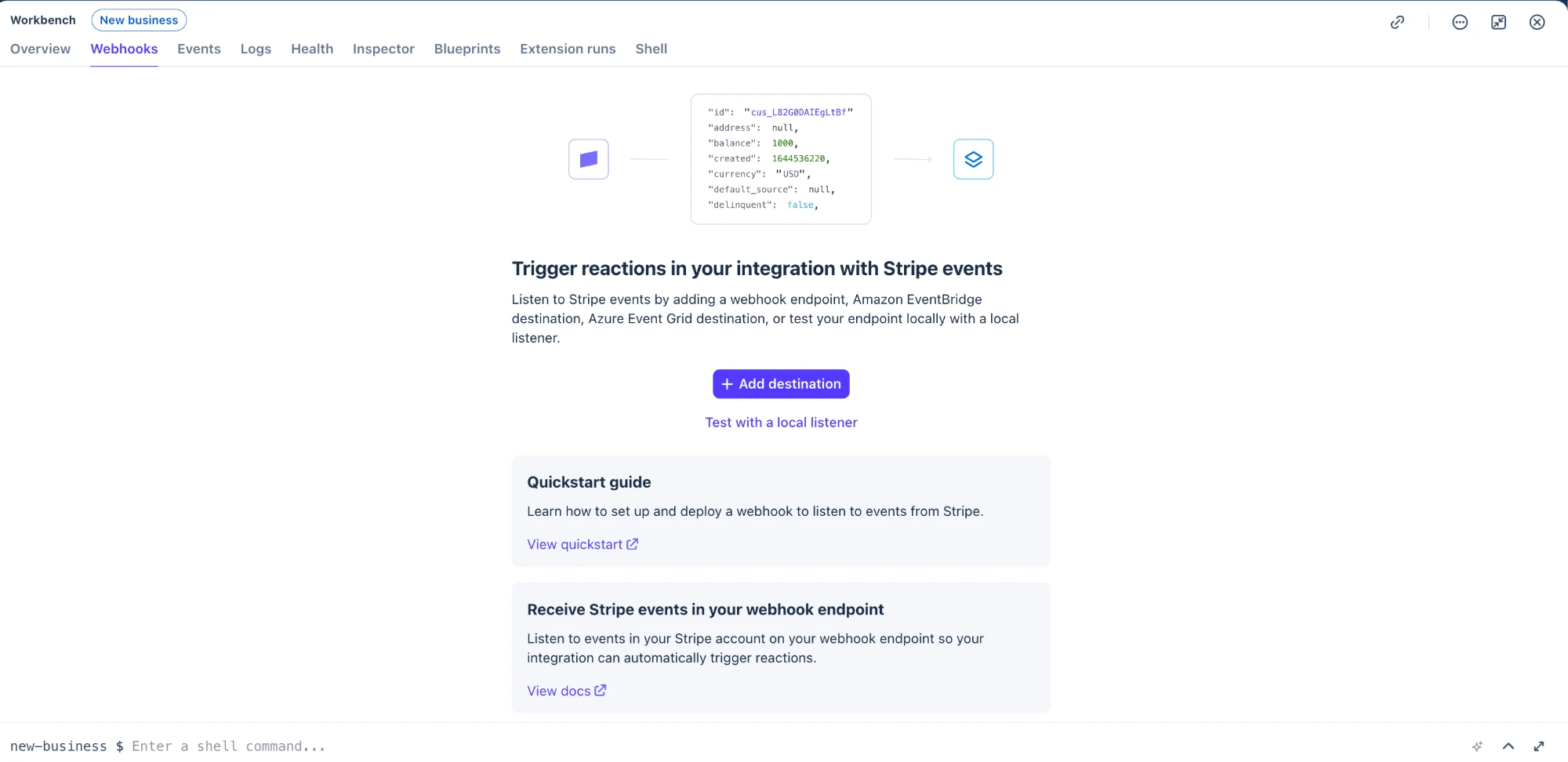
Open your Stripe Dashboard and go to Developers → Webhooks — or directly to Workbench → Webhooks.
-
Click Add destination.
-
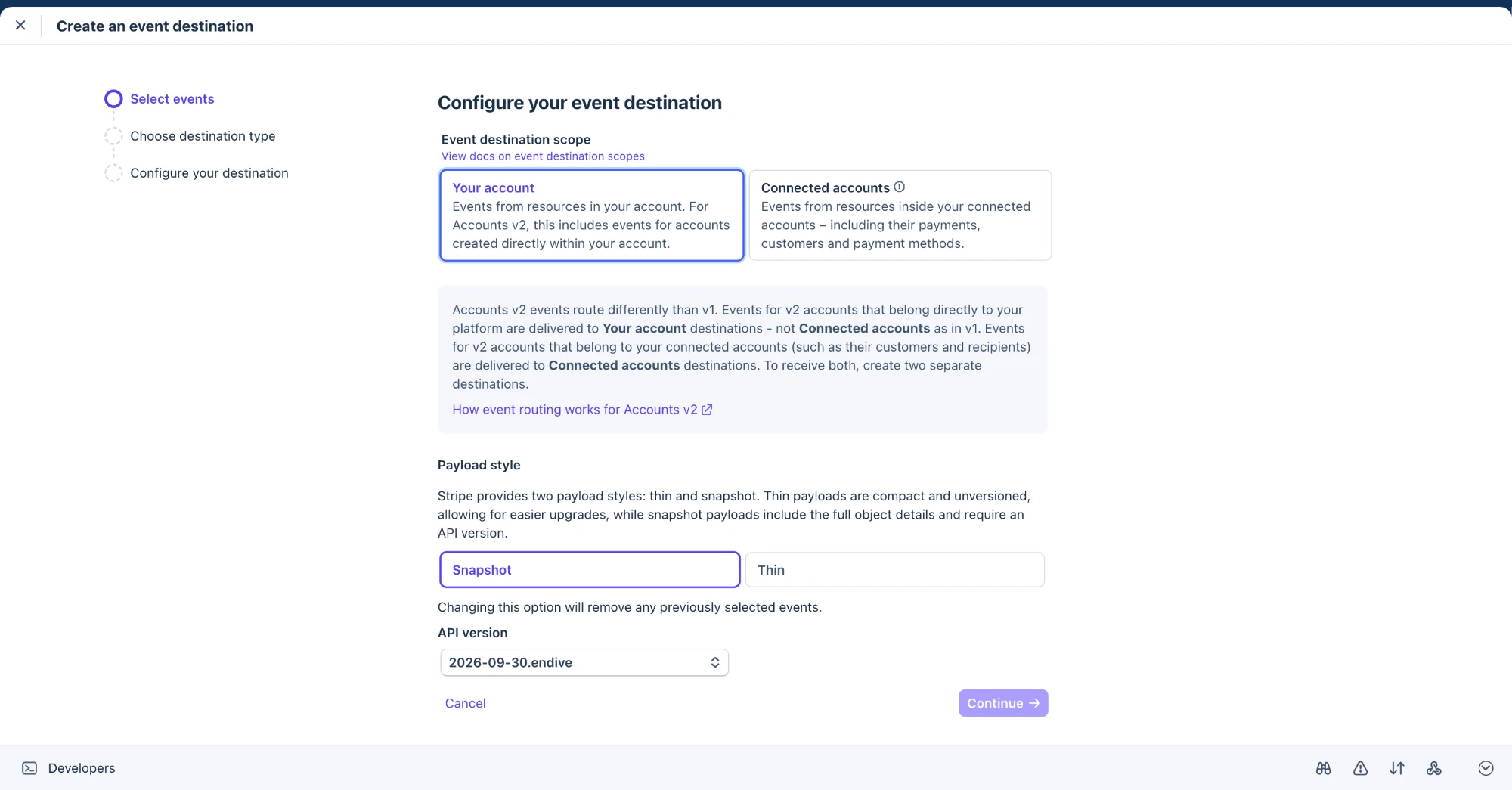
Stripe opens a Create an event destination wizard with three steps: Select events → Choose destination type → Configure your destination.
-
On Select events, under Event destination scope choose Your account — not Connected accounts, which is only for platforms listening to events from other people's Stripe accounts. Your studio is this account. Under Payload style, keep Snapshot selected — not Thin; Agon needs the full event object, not just an id it would have to look up afterwards. Leave API version at whatever Stripe proposes by default.
-
Still on Select events, use the Find event by name or description… search box — much quicker than browsing the full category tree — and check exactly these 6 events, one at a time:
checkout.session.completedcustomer.subscription.createdcustomer.subscription.updatedcustomer.subscription.deletedinvoice.paidinvoice.payment_failed
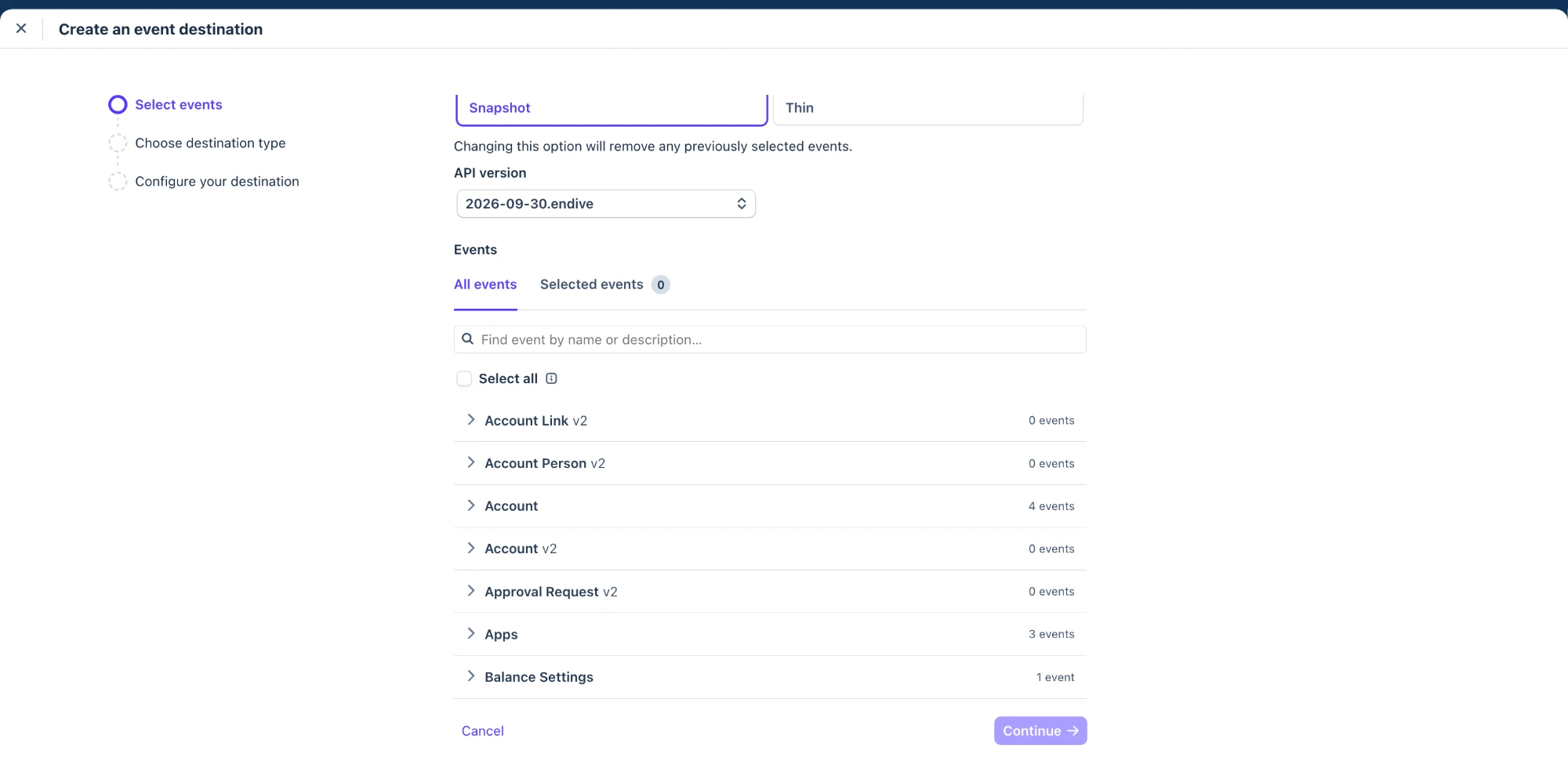
Once all 6 are checked, click Continue.
-
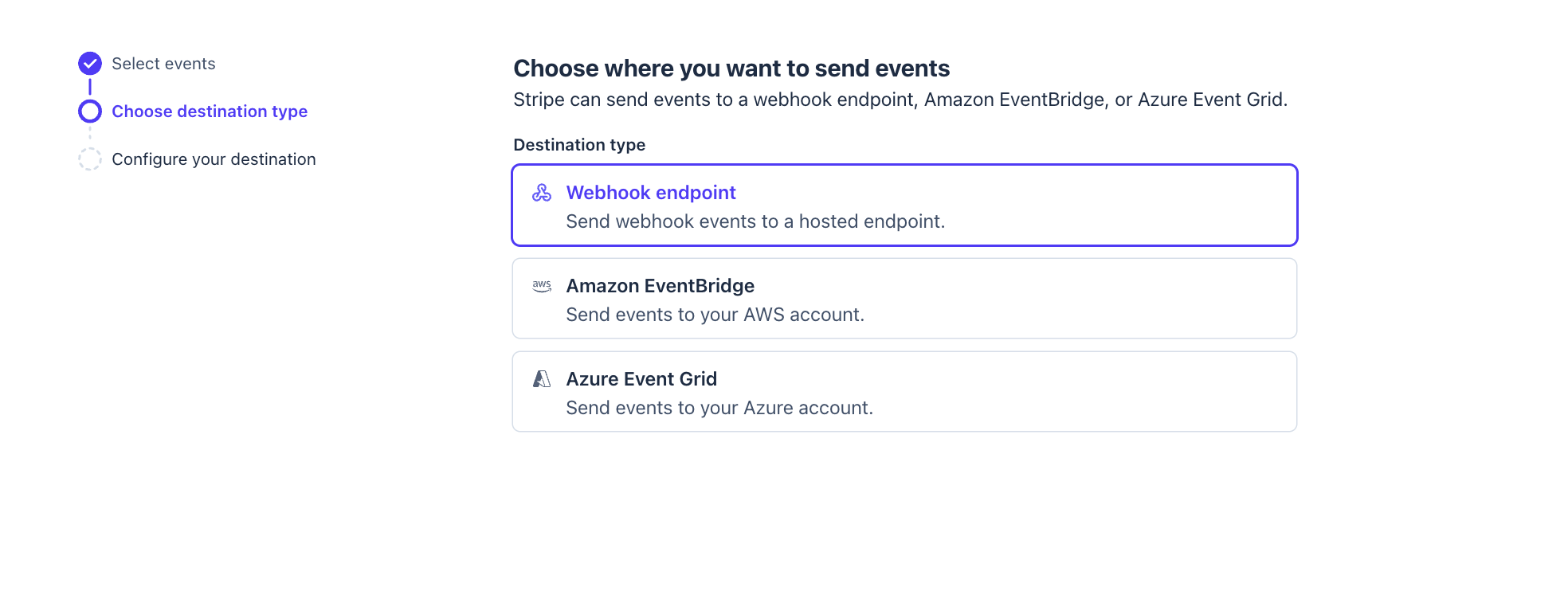
On Choose destination type, select Webhook endpoint — the first option. The other two, Amazon EventBridge and Azure Event Grid, are for routing events into your own cloud infrastructure and don't apply here. Click Continue.
-
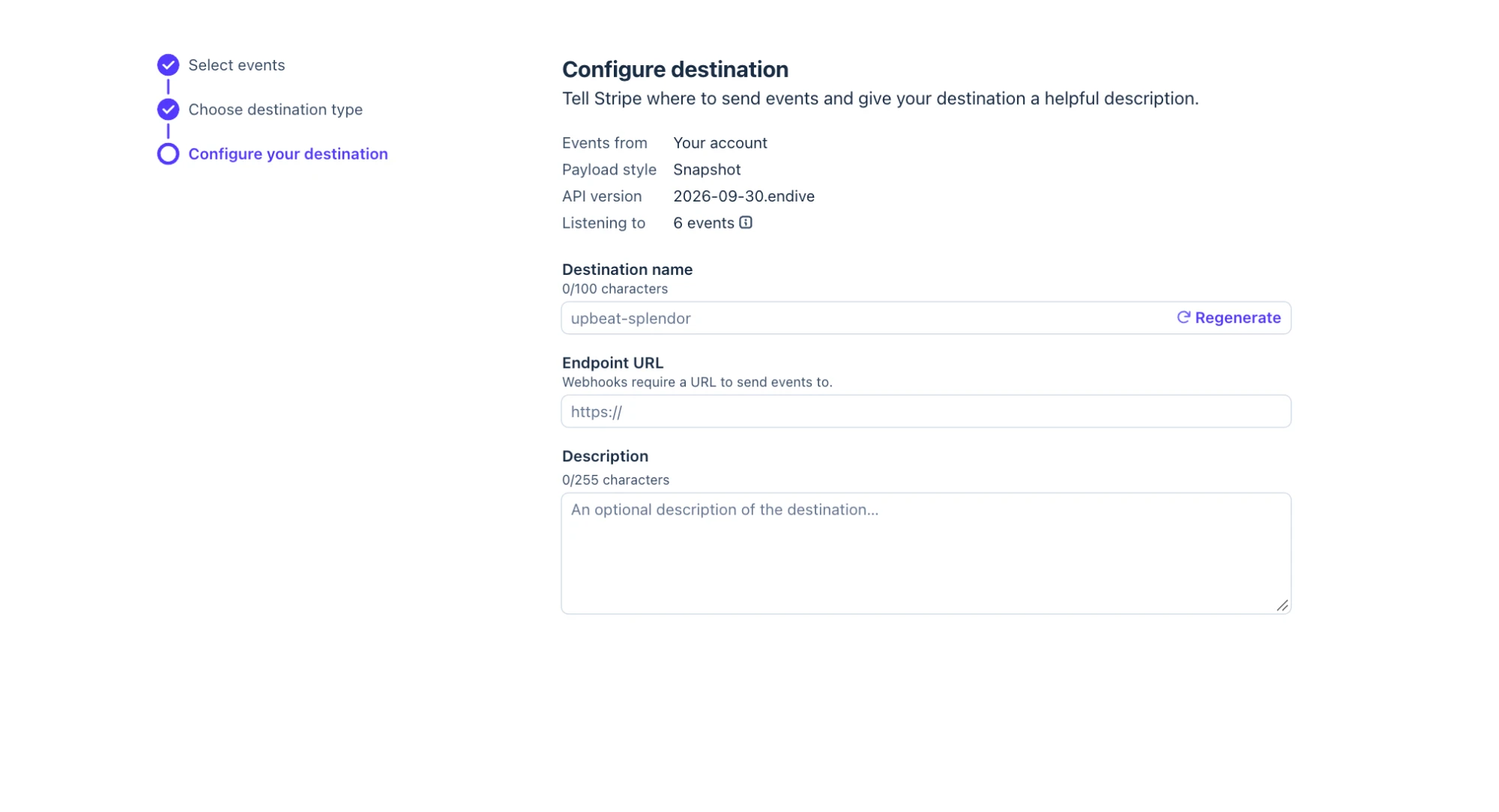
On Configure your destination, Stripe shows a summary of what you chose (Events from: Your account, Payload style: Snapshot, Listening to: 6 events), followed by three fields:
- Destination name — optional, any name works (for example "Agon"). It's only for your own reference inside the Stripe Dashboard and has no effect on anything.
- Endpoint URL — paste your studio's webhook URL from Agon's Settings → Billing page here, exactly as shown. Don't type it by hand — a single typo means Stripe can never reach your studio.
- Description — optional, can be left empty.
Click the button to create the destination.
-
Stripe now shows a Signing secret for your new destination, sometimes behind a "reveal" control you need to click first. Copy it.
-
In Agon, go to Settings → Billing and paste it into the Webhook secret field — the same field described in Payments — Connecting Stripe, always visible on that page rather than hidden behind an extra options toggle. Click Save.
What if something goes wrong?
I'm not sure whether to pick "Your account" or "Connected accounts"
Choose Your account. Your studio is the Stripe account you're configuring — Connected accounts only applies if you were a platform receiving events from other people's separate Stripe accounts, which isn't the case here.
My payments still show as Pending after setting this up
Double-check that the Endpoint URL was pasted exactly, with no extra characters or missing segments, and that the Webhook secret saved in Settings → Billing matches the signing secret Stripe shows for this specific destination. See also Payments — What if something goes wrong?.
I need to add an event later or change the URL
Open the destination again from Workbench → Webhooks in your Stripe Dashboard and edit it there. You only need to update anything in Agon if the signing secret changes too.